CW Complete Trainer is an Android app for learning and practising Morse code (CW). It covers the full learning path from individual characters through words, sentences, QSO simulations, and live web articles.
The Launch Screen
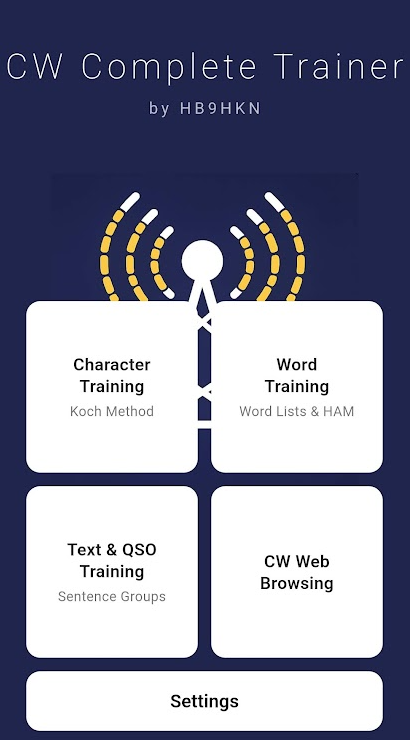
When you open the app you see four training tiles and a Settings button:
- Character Training — Koch method, one character at a time
- Word Training — common words, HAM abbreviations, callsigns
- Text & QSO Training — sentences, stories, full QSO simulations
- CW Web Browsing — convert any web article to Morse audio
Tap a tile to enter that training mode. Use the Settings button at the bottom to configure speed, audio, TTS, and more.
Every training mode has its own set of configurable parameters in Settings.
It is strongly recommended to read the Settings section
alongside the description of each feature — many behaviours (speed, spacing,
exercise length, audio quality, TTS, QSO realism) can be tuned to match your
current skill level and training goals.
Not sure where to start? See the Table of Contents for
a set of "I want to…" guides that point you straight to the right screen and settings
for your current goal — learning characters, words, sentences, QSOs, reading a book,
browsing the web, or playing games.
TTS and HCB ship on by default across the app — that's not an
accident. Leaving them on, not reading the screen, and not writing anything down is
the fastest path to real Instant Character Recognition. See
Philosophy for why.
Phone Permission
On first launch the app asks permission to read the phone state. This is used to automatically pause playback when you receive a call. You can allow or skip this; training works either way.