CW Complete Trainer

USER GUIDE  ·  by HB9HKN  ·  v3.0.35
Get it on Google Play

13Text & QSO Training

English Sentences

Use the slider to set the maximum sentence length (3 – 10 words). Sentences are shuffled and played continuously as a single exercise, subject to your exercise length settings.

Leave TTS and HCB on — either one routes English Sentences into the dedicated training screen that only reveals a sentence after you've heard it. This applies to English Sentences specifically — not to My Stories, From File, or QSO Simulations below, even though they share this screen. Those use Text display mode instead; see Read a Book in CW and QSO Practice.

My Stories

Save .txt files as named stories for repeated practice with resume support. Long files are automatically split into segments (~5 000 characters each).

  • Tap a story title to open the segment list. Each segment shows its character count and how far you have progressed.
  • A Resume chip appears on segments you have partially played — playback restarts from where you left off.
  • Tap the delete icon to remove a story.
  • Add stories via From File below — choose Save as Story when prompted.

From File

Tap Pick a .txt file to open a file from your Downloads folder. A dialog then asks what to do with the file:

  • Play Directly — play immediately as continuous prose in original order.
  • Save as Story — enter a title and save the file to My Stories for repeated use with per-segment resume tracking.

Use Word Training → From File if you want random word-by-word practice from a list instead.
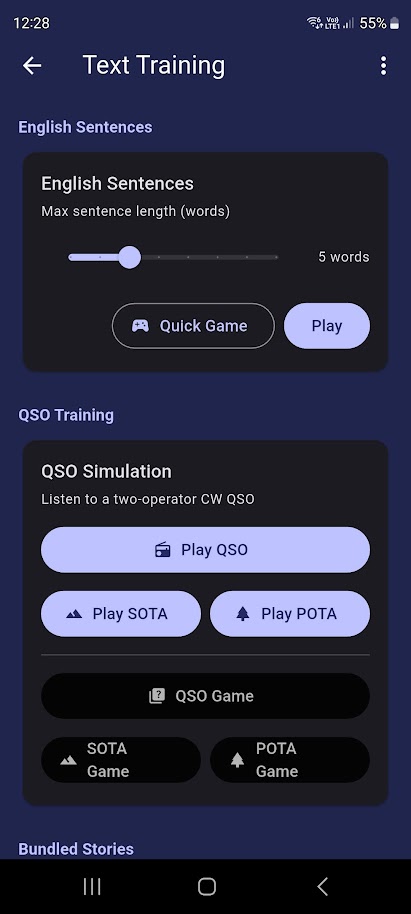
Text / QSO Training Screen

QSO Simulations

The app generates realistic two-operator QSO conversations. Four variants are available:

  • Play QSO — standard ragchew or structured training QSO
  • Play SOTA — Summits on the Air activation QSO with real SOTA references
  • Play POTA — Parks on the Air activation QSO with real POTA references
  • Play Contest — simulated contest exchange using one of the enabled contest formats (WPX, ARRL DX, or CWops CWT); format is chosen randomly each time, with no consecutive repeats when multiple formats are selected
Standard prosigns — AR, SK, KN, BK, and AS — are automatically recognised when they appear as standalone words in the QSO text and are transmitted as fused characters (no inter-element gap), matching on-air convention.

During QSO Playback

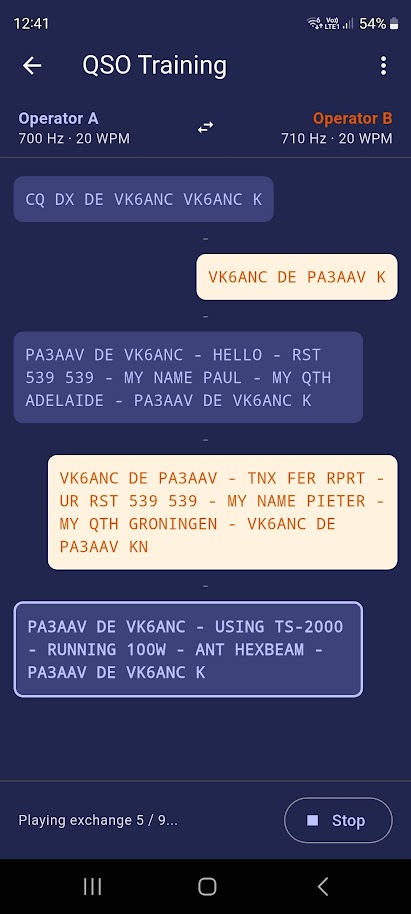
  • The transcript is revealed line by line as each exchange plays.
  • Operator A lines appear in blue; Operator B lines in amber.
  • The two operators transmit on slightly different frequencies — making them easier to distinguish by ear (configurable in Settings → QSO Simulations).
  • Text display mode (full at start / chars as played / full at end) applies here.

Controls During QSO

  • Play Again — replay the same QSO from the beginning
  • Play Another QSO — generate and play a brand-new QSO
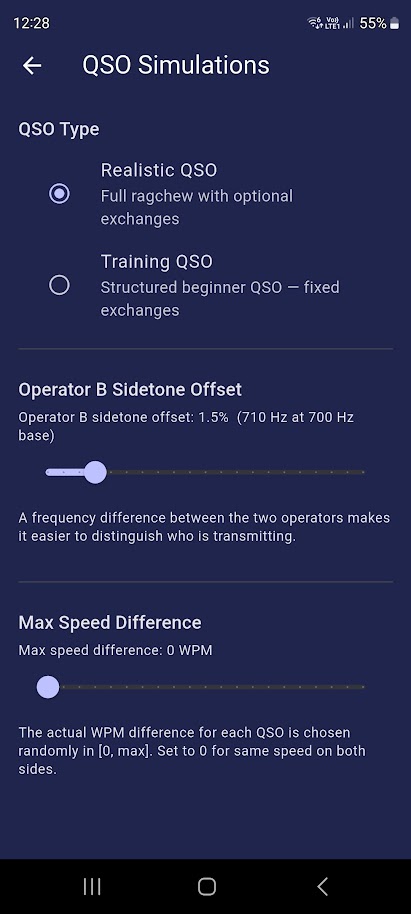
QSO realism is controlled by Settings → QSO Simulations. Key parameters: QSO type (Realistic ragchew vs. structured Training QSO), Operator B sidetone offset (frequency difference between the two operators — set to 0 for identical tones, increase for a more challenging copy), and Max speed difference (how much Operator B's WPM can vary from Operator A). Start with a Training QSO at 0 offset and 0 speed difference, then progressively increase realism as you improve.

QSO Games

  • QSO Game — listen to a full QSO, then answer multiple-choice questions about what was exchanged
  • SOTA Game — same format using a SOTA activation QSO
  • POTA Game — same format using a POTA activation QSO
  • Contest Game — contest QSO quiz with questions about the exchanged data: serial numbers (WPX), state/province/power (ARRL DX), or name + member number/prefix/CWA (CWops CWT)

See Quick Games for full details on scoring and mechanics.

Ragchew QSO exchange

QSO Settings in Detail

Reach QSO-specific settings via Settings → QSO Simulations from the launcher. The screenshot shows the full set of options.

QSO Settings screen