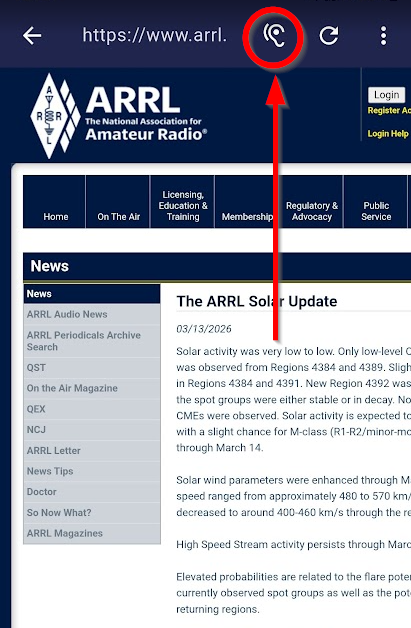
Convert any online article to Morse audio in seconds — useful for practising with real-world content at your target speed.
Using the Browser
- Tap CW Web Browsing from the launcher — the built-in browser opens immediately.
- Navigate to any page using the URL bar at the top.
- Tap the Convert floating button (bottom-right) to extract the current page and start Morse playback.
https://arrl.org
Choosing the Right Page
Text extraction quality depends on how the website encodes its content. A few practical guidelines:
- Best: individual news articles, blog posts, Wikipedia articles — pages whose primary purpose is to present a body of text.
- Poor: home pages, category pages, search results — pages that are mostly navigation links rather than readable text. The extractor may produce garbled output or very little text at all.
- Varies: some publishers use heavy JavaScript rendering or aggressive paywall encoding; the extractor works on the page source it receives and cannot always recover the readable article from these sites.
Basic Characters Only
When enabled on by default, the text is filtered to
letters, digits, spaces, periods, commas, and hyphens before encoding. This
removes symbols, emoji, and special characters that don't have Morse equivalents.
Disable in Settings → Browser Settings if you want full character coverage.
Exercise Length
The Exercise length setting in Settings → General does not apply to Web Browsing — a converted article always plays start to finish regardless of that setting. For a shorter session, pick a shorter article, or tap Stop partway through.
For Real ICR Practice
Web Browsing has no TTS or HCB option, so Text display mode is the only lever for hiding the article while it plays. Set it to At text end or Chars as played instead of the default Progressive to force real listening — and avoid writing down what you hear, for the same reason. See I Want to Listen to a Web Page in CW.
QRM / QRN in Web Browsing
QRM and QRN apply to CW Web Browsing as well as all training modes. If you have interference or atmospheric noise enabled in Settings → Audio, it will be mixed into web article playback — useful for practising real-content copy under realistic band conditions.